Introduction to Invoicing
In Datapel WMS, "Invoicing" is the final step of the dispatch workflow. When you invoice a sale, the system moves the status from Shipped to Closed and triggers a "Replication" (sync) that sends the transaction details directly into your accounting software (e.g., MYOB or Xero).
How to Invoice and Close Shipped Sales
Use this process once items have been physically packed and marked as shipped in the warehouse.
Step 1: Open the Despatch Register Navigate to the Despatch Register from your main dashboard.
Step 2: Select Sales to Finalize Identify the sales you wish to invoice. You can click to select a single sale or hold the Ctrl key to highlight multiple sales at once.
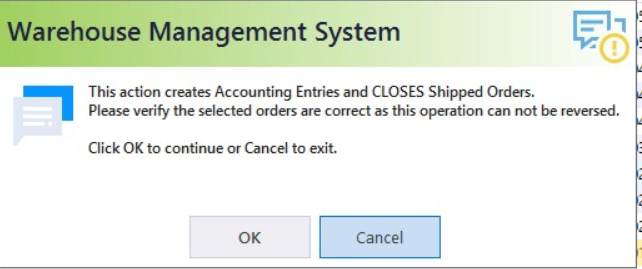
Step 3: Execute the Invoice Command Right-click on the highlighted selection and select "INVOICE SHIPPED SALES" from the context menu. Click OK to confirm the action.
Step 4: Sync with Accounting WMS will now communicate with your accounting software. Once the replication is complete:
The Sale Status in WMS will change to CLOSED.
A new Invoice/Order will appear in your Accounting Software Sales Register.
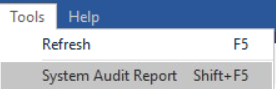
Note: If a sale fails to transfer, go to the Tools menu and select Audit Report to view specific error details.
Re-sending a Closed Sale to Accounting
Once a sale is CLOSED, it cannot be modified or re-invoiced through standard paths. However, if you need to push the data to your accounting system again (for example, if a record was accidentally deleted in MYOB), follow these steps:
Go to the Sales Register.
Locate and Double-click the specific sale to open the details view.
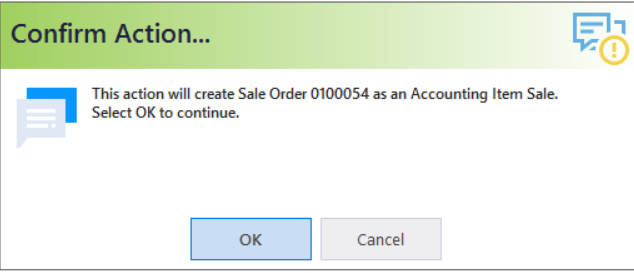
Click "Send to Accounting" at the bottom.
Select OK on the confirmation prompt.
Verify the entry now appears in your accounting system.
Related Information
If you don't want to process the sales manually, a scheduled task can be set up to run overnight.
Understanding Replication: Synchronizing WMS with Your Accounting System
Was this article helpful?
That’s Great!
Thank you for your feedback
Sorry! We couldn't be helpful
Thank you for your feedback
Feedback sent
We appreciate your effort and will try to fix the article